
It happened. You logged into Zoho One this morning with your coffee in hand, ready to check your emails, and… everything moved.
It’s the "Zoho One 25" update (ZO25). And if you are like most business owners, your first reaction wasn't excitement; it was probably a mild panic. “Where is my CRM button? What is a ‘Space’? Why does my admin panel look like the cockpit of a spaceship?”
Take a deep breath. We promise you, nothing is broken. In fact, once you get past the initial "who moved my cheese" shock, this update is actually going to save you about 30 minutes a day.
At Bickert Management Inc. (BMI), we’ve spent the last week tearing apart the beta version of this update so you don’t have to. Here is your plain-English guide to surviving—and actually enjoying—the new Zoho One.
1. The "Spaces" UI: Taming the App Chaos
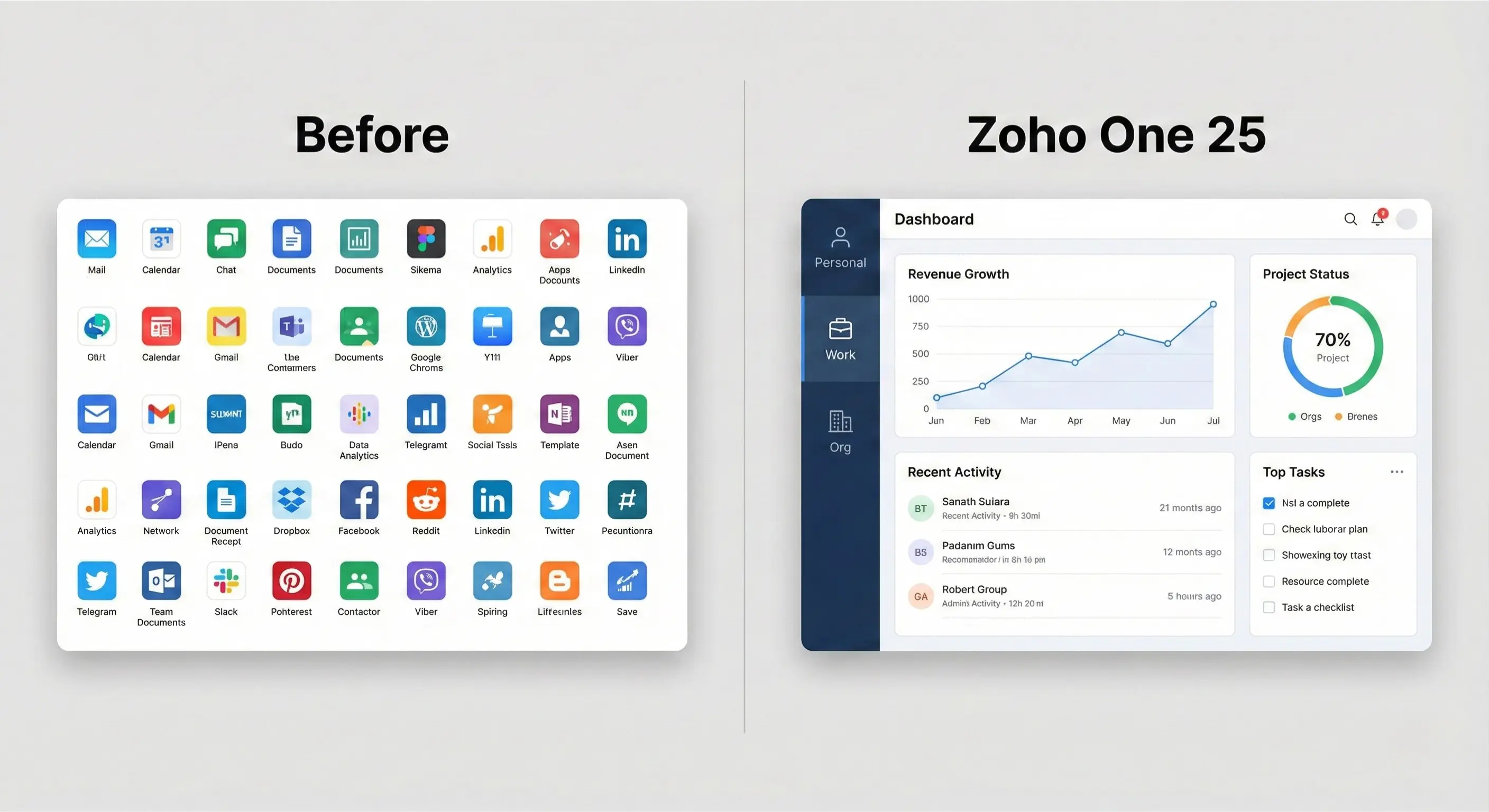
The most immediate and jarring change you will notice is the complete overhaul of the navigation bar. Gone is the simple "List of Apps" that we have used for years. In its place is a new concept called "Spaces."
If you have been using Zoho One for a while, you know the struggle: you have 45+ apps available, but you only really use 5 or 6 on a daily basis. The old dashboard often felt like a junk drawer useful, but cluttered.
Zoho has solved this by organizing your digital life into three distinct "Spaces," accessible from the left-hand rail.
The Breakdown: Personal, Organizational, and Functional
1. Personal Space: Your "Do Not Disturb" Zone
This is where the magic happens for you. Think of this as your private office with the door closed. In the Personal Space, the only apps you see are the ones that help you manage your own day.
What lives here: Zoho Notebook (your digital scratchpad), Cliq (your direct messages), your personal Calendar, and your Tasks.
Why it matters: When you need to block out the noise and just work, you switch to this space. You aren't distracted by the 50 unread tickets in Zoho Desk or the sales leaderboard in CRM. It is designed purely for individual productivity.
2. Organizational Space: The "Town Hall"
This is the digital equivalent of the office bulletin board or the water cooler. The Organizational Space is where company-wide information lives. It separates "Work" from "Culture."
What lives here: Zoho Connect (your company intranet), Zoho People (where you check your leave balance or HR policies), and company-wide announcements.
Why it matters: Previously, HR updates would get buried in your email inbox. Now, they have a dedicated home. If you are an admin, this is where you publish the "Office Holiday Party" details so they don't get lost in a Slack thread.
3. Functional Space: The "War Room"
This is where the actual departmental work gets done. And this is where the update shines the brightest. Instead of seeing every app, the Functional Space groups apps based on your role.
For Sales Teams: Your Functional Space will bundle Zoho CRM, Zoho SalesIQ, Bigin, and Zoho Meeting. You have everything you need to close a deal in one view.
For Finance Teams: You see Zoho Books, Zoho Expense, Zoho Inventory, and Zoho Payroll.
The Best Part: You can customize these. If your Marketing Manager also needs access to the Finance dashboard to check ad spend budgets, you can add that specific app to their Functional Space without cluttering their view with the entire accounting suite.
The Verdict: It takes about 48 hours to get used to. But once you do, you realize how much mental energy you were wasting just looking for the right icon. "Spaces" stops the context switching.
2. Zia Hubs: Your Corporate Brain
This is the feature nobody is talking about yet, but it’s arguably the most powerful tool in the entire 2025 lineup.
We have all been there: You are on a call with a client. They ask about a specific clause in their contract from two years ago.
You search in Zoho WorkDrive... nothing.
You frantically check Zoho CRM attachments... nothing.
You search your Zoho Mail... found it! But now you have to download it, open it, and Ctrl+F to find the clause.
Zia Hubs eliminates this scavenger hunt.
How It Works
Zia Hubs turns Zoho’s AI assistant (Zia) into a proactive librarian. It doesn't just "store" files; it "reads" and indexes them across the entire Zoho ecosystem.
You can now use natural language to ask Zia complex questions like:
"Show me the service agreement for Acme Corp from last November and any emails about 'termination clauses'."
Zia will scour:
WorkDrive (for the PDF contract).
Mail (for the negotiation thread).
Cliq (for the internal chat where you approved the clause).
It then presents these to you in a single "Hub" view. It creates a temporary, dynamic folder containing everything related to that topic, regardless of where the file actually lives.
The BMI Take: For law firms, consultancies, or any business that lives and dies by documentation, Zia Hubs is a game-changer. It creates a "Corporate Brain" that ensures institutional knowledge isn't lost just because someone forgot to save a file in the right folder.
3. The Unified Admin Panel (Finally!)
If you are reading this and you are not an IT Admin, you can probably skip this section. But if you are the poor soul responsible for onboarding new employees, grab a tissue—you might cry tears of joy.
For years, managing a Zoho One account was... disjointed. To onboard a new salesperson, you had to:
Go to Zoho CRM, find them, and assign a Role and Profile.
Go to Zoho Desk, find them, and assign a Department.
Go to Zoho Projects, find them, and assign a Portal.
It was click-heavy and prone to errors. If you forgot step 3, that new rep would spend their first week unable to see customer support tickets.
Enter "Smart Groups"
The ZO25 Unified Admin Panel centralizes everything into Policy-Based Assignment.
You can now create a "Smart Group" called "Sales Reps - Canada". In the settings for this group, you define the "Stack":
CRM Access: Standard Role, Reports enabled.
Cliq Access: Added to #Sales-General and #Wins channels.
Expense Access: CAD Currency, Limit $500/month.
WorkDrive Access: "Read Only" for Marketing Collateral folder.
The Magic: When you hire "John Doe," you simply drop him into the "Sales Reps - Canada" group. Click. Zoho automatically pushes all those permissions to the respective apps. John has the right currency, the right chat channels, and the right CRM access instantly.
If John gets promoted? You move him to the "Sales Manager" group, and his permissions update automatically across the board.

4. The "Canvas" Everywhere Initiative
You might remember when Zoho introduced Canvas for CRM—a tool that let you redesign the look of your CRM records to look like a clean website rather than a database.
With the 2025 update, Zoho is pushing Canvas to more apps, including Zoho Desk and Zoho Creator.
Why Design Matters in Software
We often hear clients say, "I don't care what it looks like, as long as it works." But here is the truth: Ugly software gets bad data.
If a screen is cluttered with 50 fields, your sales reps will ignore it. They won't fill in the "Lead Source" because they can't find it. With the expanded Canvas capabilities, you can build interfaces that are:
Minimalist: Hide everything except the 3 fields that matter right now.
Brand-Consistent: Use your company colors and fonts.
Intuitive: Use big buttons for "Log Call" or "Create Invoice" instead of tiny text links.
This update allows you to create a visual consistency across your entire company. Your Support Desk can look and feel exactly like your CRM, reducing the training time for staff who work in both.
Want to see Canvas in action? check out our video tutorials on the BMI YouTube Channel where we show before-and-after transformations of messy CRMs.
5. Security: The Silent Upgrade
While "Spaces" gets the headlines, the security updates in ZO25 are what will let you sleep at night.
Zoho has introduced Identity Connect and improved Directory Stores. In plain English: it is now much easier to sync Zoho with your existing Microsoft Active Directory or Google Workspace.
If you change an employee's password in Google, it instantly updates in Zoho. If you disable an employee in your main HR system, they are instantly locked out of Zoho. There is no lag time, which means no security gaps.
It’s Okay to Be Confused (For a few days)
Look, we know that muscle memory is a powerful thing. You are going to click the wrong button a few times this week. You are going to curse the new layout at least once when you can't find the "Settings" gear (hint: it’s still in the top right, but the menu inside has changed).
But these changes are pushing Zoho One from a "suite of apps" to a true Business Operating System. The goal is to stop you from thinking about apps ("I need to open Word") and start thinking about tasks ("I need to write a proposal").
Don't Struggle in Silence.
Change management is hard. If your team is rebelling against the new layout, or if you want to make sure you have set up those "Smart Groups" correctly so you don't accidentally give the summer intern access to your bank feeds, we can help.
We are offering a specialized "Zoho One 25 Walkthrough" as part of our PowerPlan packages. We will jump on a screen-share, configure your "Spaces" to match your actual workflow, and show your team exactly where their cheese moved.
Book Your System Audit & Walkthrough Here
Or, if you just want to read more about maximizing your current setup, check out our Resources Page for more free guides and tutorials.
Welcome to the future of work. It’s cleaner here.
Disclaimer: Features mentioned are based on the Zoho One 25 Beta release notes and are subject to change as the rollout continues.